Zoom regularly provides new versions of the Zoom desktop and mobile apps to release new features and fix bugs. We recommend updating to the latest version when it is available to receive the best video and audio experience.
You can check which version you're currently on and review release notes to stay updated on the latest changes from Zoom.
How to Update the Zoom Workplace App Using Windows Software Center
-
Type in "Software Center" in the Windows search bar (found in the taskbar or via the Windows key which allows quick access to apps, files, settings, and web results.
-
Select the "Software Center App" that appears in the "Best match" section of the drop down menu.
-
The Software Center will open to the "Applications" tab by default. From here users can choose to filter applications by All, Required, or Featured.

If Applications have been categorized correctly, users may also choose the Filter: dropdown box to filter applications by category. 
You can sort applications by using the Sort by: dropdown and also search for specific applications with the search box in the upper right corner.
-
Select the "Zoom" app.
-
Monitor the update on the "Applications" tab or you can monitor on the "Installation status" tab.
-
The "Installation status" tab will show the status of Applications/Updates/Operating Systems. They will have a status of Installed, Failed, Downloading, Removing, or Installing.

-
Once the update has completed, it will read "Installed".
How to Update the Zoom Workplace App Using Mac Self Service+ App
- Select "Open Self Service" typically located in the "Actions menu".

-
Select "Updates" to view any updates that are ready to be installed.

- If the Zoom Workplace App has never been added to "Self Service", search for it in the "Catalog" and select "Install".

Note: To "Request Admin Privileges" for specific installations, please see "Jamf Connect FAQ" on the right under Related Articles.
How to Update the Zoom Workplace App Using "Check for Updates"
Zoom provides a pop-up notification when there is a new mandatory or optional update within 24 hours of logging in.
If you already have the Zoom desktop app installed, check for updates:
-
Sign in to Zoom desktop app.
- In the top-right corner, click your profile picture, then click Check for Updates.
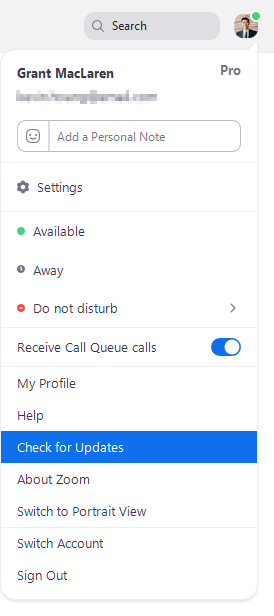
If there is a newer version, Zoom will download and install it.
Note: If the desktop app was installed with the MSI installer by you or your IT team, AutoUpdate is disabled by default and the Check for Updates button is also removed. Please contact your IT team or Zoom account admin for help with updating.
You can also manually download the latest version by going to the Download Center.